Help
Answers about your profile, parent features, school setup and learning to tell time.
Here you'll find everything you need to get the most out of Zeitlernen with your children, in four short sections. With pictures taken straight from the app we show you step by step how everything works. Just pick the topic you're interested in.
My profile
In your settings you fine-tune your account: display name, avatar, usage type, language, notifications and security. You can reach the settings any time via the avatar menu in the top right.
Display name & avatar
Under "Profile" you decide what you're called in the app. Upload an avatar picture or pick a profile colour from the pastel palette, the colour will appear behind your initials. The same palette is also available for your children.
Usage: private or school
In the "Usage" tab you set what you mainly use Zeitlernen for: "I am a parent" or "I am a teacher". The choice controls your start page after signing in and whether the school area appears in the navigation at all. You can switch any time, your children and your schools are kept either way.
Language & Format
In the "Language & Format" tab you switch between German, French, Italian and English, or let the app follow your browser language automatically. The choice applies to the whole app and is remembered by your browser: next time it'll be active right away.
Notifications
Under "Notifications" you choose which emails you want to receive, for example the welcome email or account status updates. You can also enable browser notifications and bring back info banners you dismissed earlier. Security-related emails (such as password resets) are always delivered and cannot be turned off.
Security
In the "Security" tab you change your password and manage your sign-in providers: you can additionally link your account to Google, Microsoft or Apple and sign in with one click in the future. A strong, unique password remains the most important foundation.
Managing your account
If you wish to delete your account, you'll find the option in the "Delete Account" tab under the "Danger zone" heading. Deletion permanently removes all your data, including child profiles, learning history and school memberships. Think it through, there is no way back.
Parents: children & progress
As a parent you can add as many children as you like, accompany their learning time and see what they've mastered and where more practice is needed. All parent features live under "Parent dashboard" and "My children" in the avatar menu.
Adding a child
Open "My children" and click "Add child". Only the first name is required, that is all the app asks for; year of birth and bedtime are optional. A picture or pastel colour rounds off the profile. Once the child is created, they appear in the child switcher at the top of the app.
Switching between children
The active child is shown at the top of the navigation. Through the selector you switch in an instant to another child, games, progress and analytics adapt right away. That way every child practices under their own name.
Setting bedtime
If you've saved a bedtime for the child, "My Home" shows a friendly good-night card in the evening with a countdown to bedtime. This helps children develop a sense of time through the day, without any pressure.
Understanding progress
The parent dashboard shows six key figures per child: total learning time, sessions, quiz accuracy, active days, practice streak and last activity. The "Mastery by time" heatmap highlights in green the times that are solid and in red those that are still wobbly. The "Hardest times" list tells you where to practice next.
Range & filters
With the period filter you choose between the last 7, 30 or 90 days, a school year or "All time". This way you see both the current trend and the overall trajectory of your child.
School portal link
If your child learns through a school, the teacher will share a personal portal link with a code word. Your child can sign in without an account on a tablet or computer, perfect for homework or practicing together on the family tablet.
School: feature overview
Schools can create classes in Zeitlernen, invite teachers, add children and give every child their own learning access. Whether the school area is visible depends on your usage type: it appears as soon as "I am a teacher" is selected in your settings under "Usage", or once you belong to a school.
Finding the school area
As a teacher you land straight in "My schools" after signing in. On large screens the pill in the top right switches between "Private use" and "My schools", the avatar menu lists both destinations under "Educational institution", and on your phone you'll find them in the same place in the profile menu. If "I am a parent" is selected and you don't belong to a school yet, the school area stays hidden. It comes back as soon as you switch to "I am a teacher" in your settings under "Usage", or once a school invites you by email. Anyone who already has a school keeps access in any case, even with the private usage type.
Creating a school
Under "My schools" click "Create school" and enter name, address, primary language and country. Once the school is created you are automatically its admin and can invite more people.
Setting up classes
In the school detail under the "Classes" tab you create as many classes as you need (e.g. "3a") and optionally add a grade. Classes can later be edited, deactivated or deleted. A hard limit of 25 children applies per class.
Adding children
Under the "Children" tab you add each child with first and last name. Only the first name is required; you can add a year of birth or a full date, but you do not have to. Optionally you can add a photo, avatar colour and bedtime. The Excel template under "Export / Import" lets you add many children at once, each row is shown for review before the import is applied.
Team & inviting teachers
The "Team" tab shows everyone with access to the school. Through "Invite person" you send an email invitation with a role (admin or teacher). Teachers manage classes and children but cannot change master data or roles.
Learning portal & code words
In the "Learning Portal" tab you set the school code, it becomes the base URL for all children. Each child additionally gets their own code word. Through "Copy link" you share the address with parents or print it onto class and child PDFs.
PDF handouts
For every class and every child you can download a PDF with QR code and code word, ideal for printing and sending home. That way every child finds their own learning page on their own.
Learning the clock: how it works
Zeitlernen combines short theory chapters with four playful exercises that introduce children to the analog clock step by step. In the navigation the areas are called "My Home", "Understanding the clock" and "Play & Learn", here we show you each of them with a picture from the app.
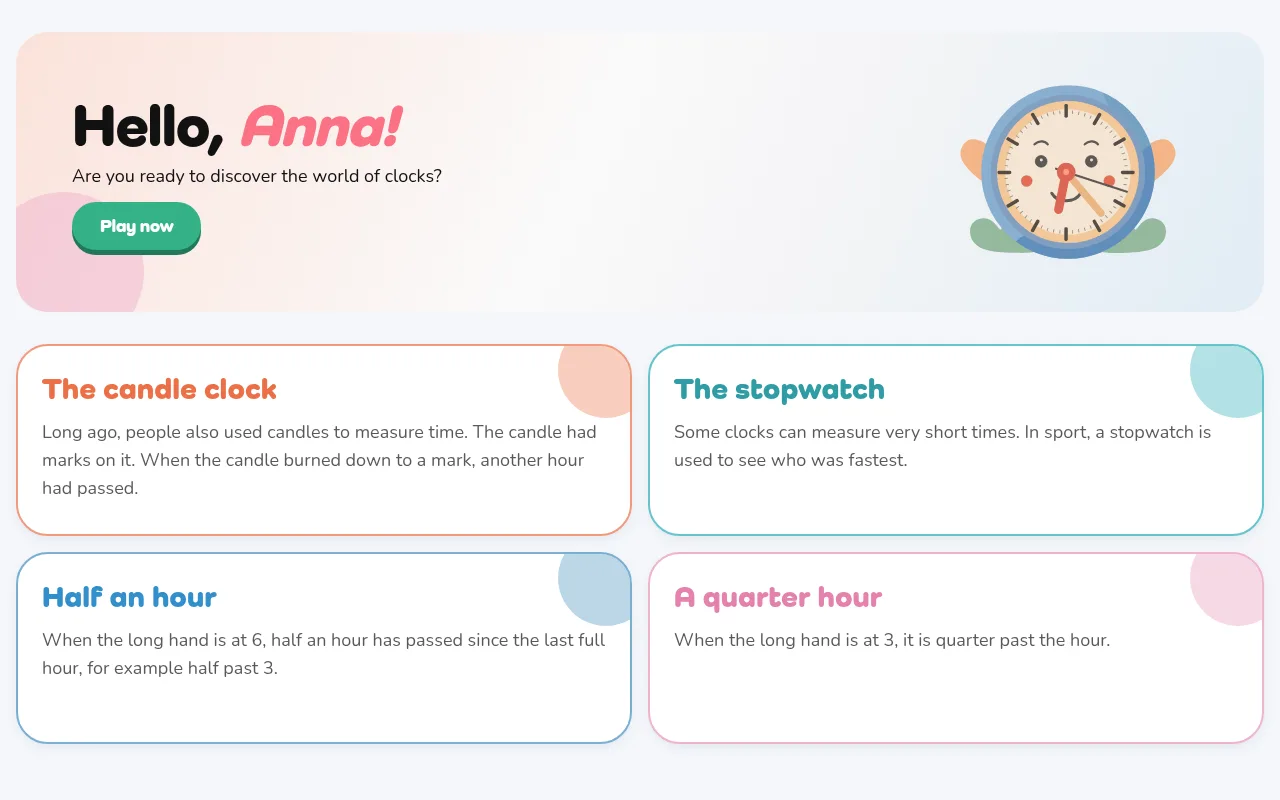
"My Home": the start page
After signing in, your child lands on "My Home": a personal greeting, the big play button and little knowledge cards all about time. If the child has a bedtime, the good-night card appears here in the evening too.
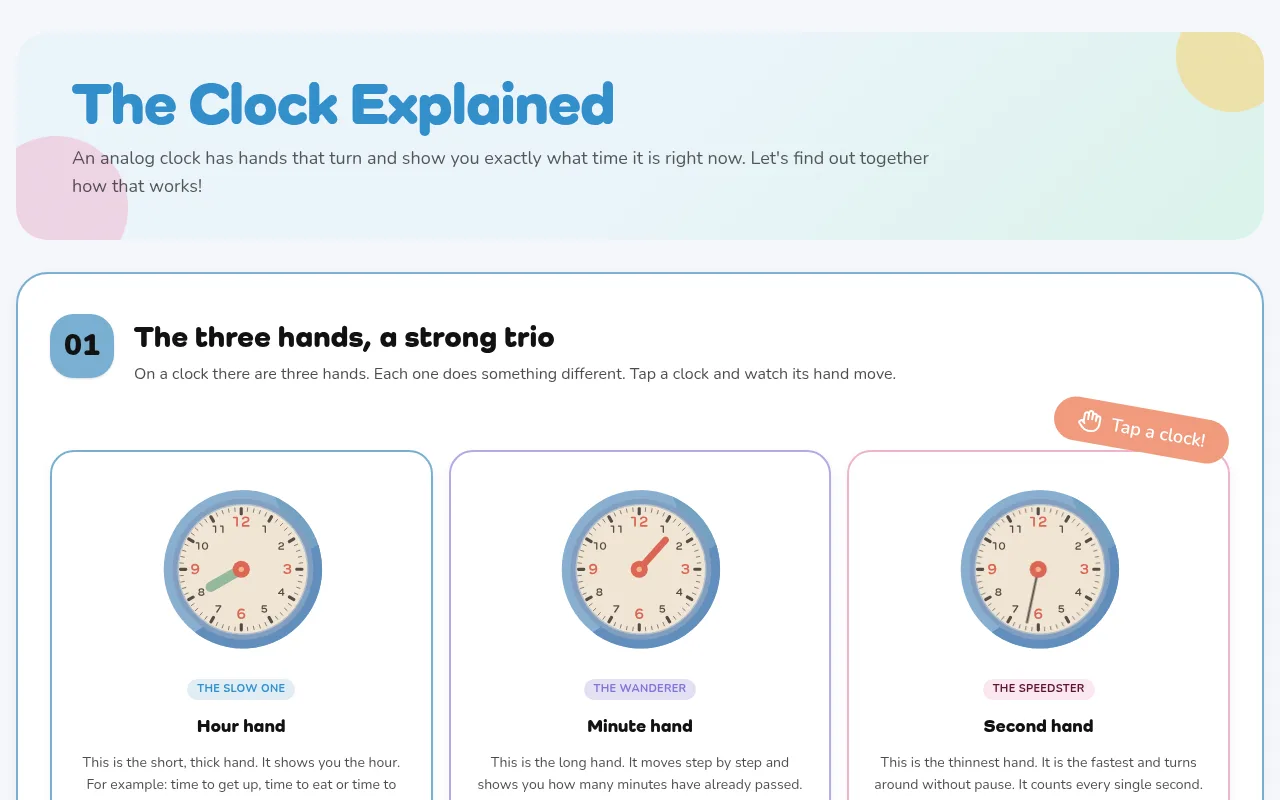
"Understanding the clock": the theory
In the theory chapters we take children warmly and visually through the world of the clock: the three hands and what they do (with clocks to tap!), reading full hours, half hours and quarter hours, the rhythm of the day, plus a little journey through the history of timekeeping, from the sundial to the pocket watch. As a bonus, "Fascinating clocks of the world" await, such as Big Ben or the atomic clock.
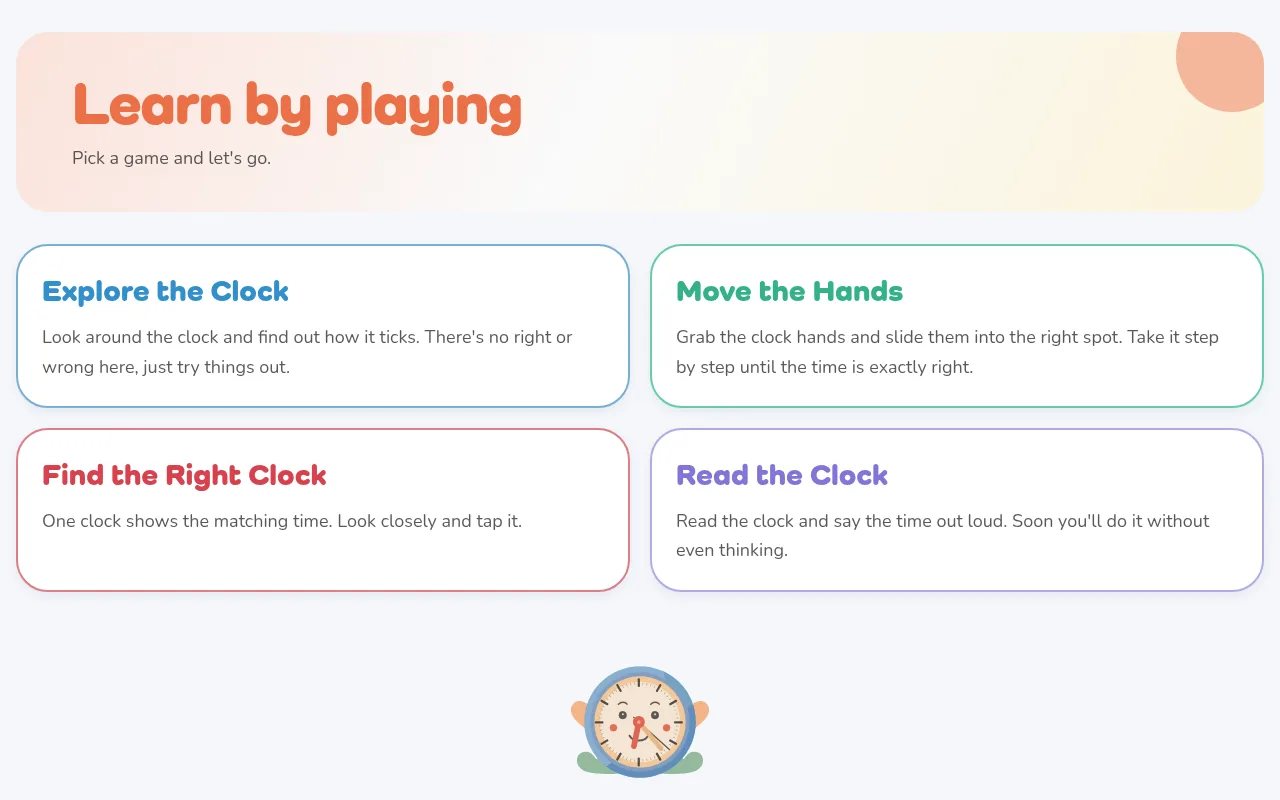
"Play & Learn": the game picker
Under "Play & Learn" your child chooses from four exercises: "Explore the Clock", "Move the Hands", "Find the Right Clock" and "Read the Clock". Further down, a live clock shows the current time, connecting what's being learned directly to the present moment.
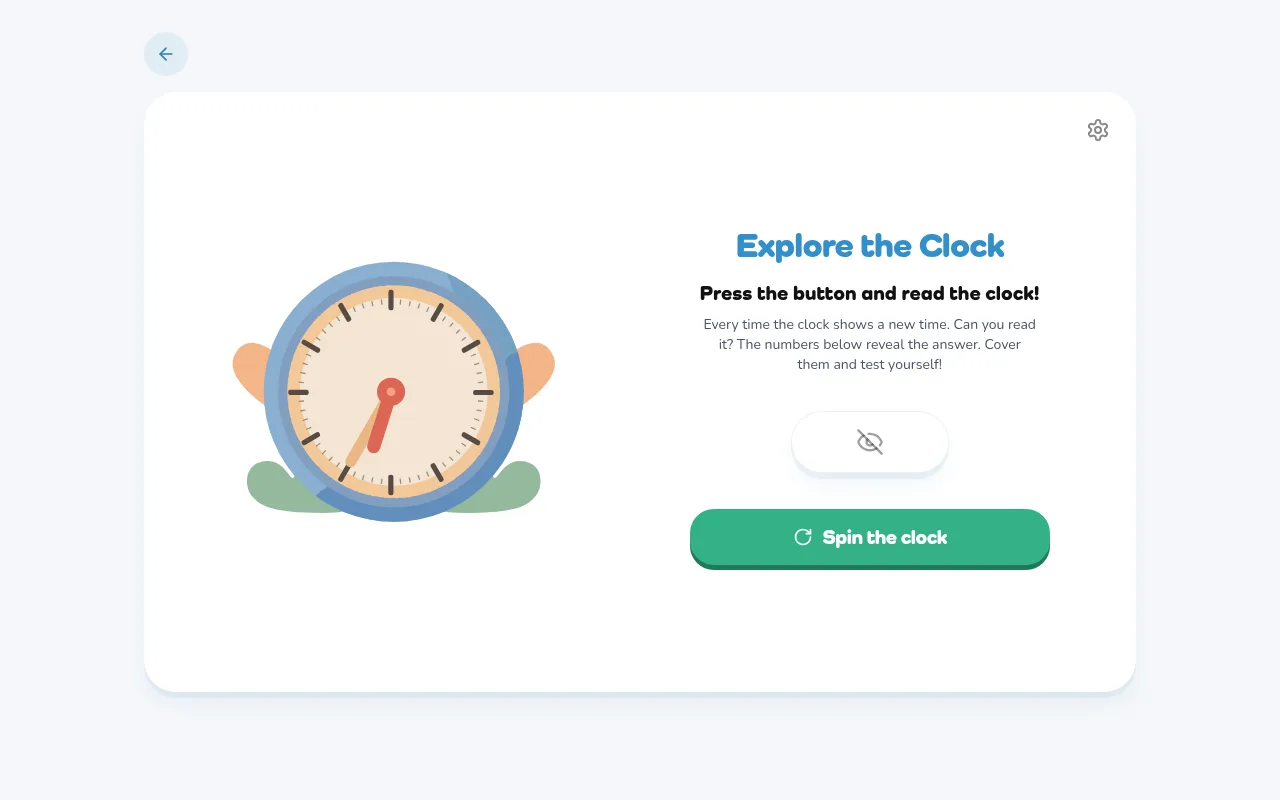
Game 1: Explore the Clock
Free exploration with no right or wrong, ideal for warming up. Pressing "Spin the clock" rolls a new time, and with the eye button the child reveals or hides the digital answer to test themselves. The gear icon lets you toggle 5-minute steps and minute tick marks.
Game 2: Move the Hands
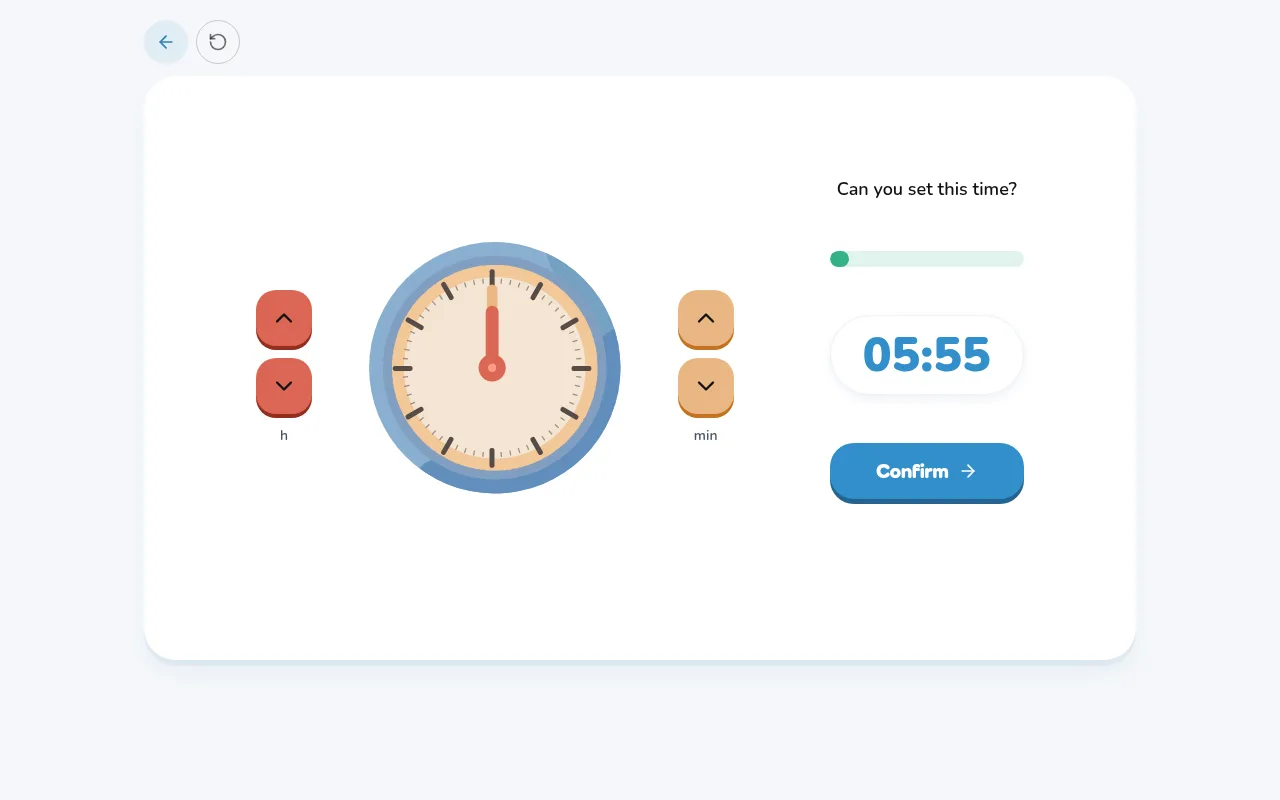
The app shows a target time as a digital number at the top and your child sets the clock themselves: either by dragging the hands directly on the clock face or with the arrow buttons for hours and minutes. After confirming there's instant feedback, on a mistake, dashed ghost hands visibly glide to the correct position so the child experiences the correction. A round has 10 tasks, and the bar shows progress.
Game 3: Find the Right Clock
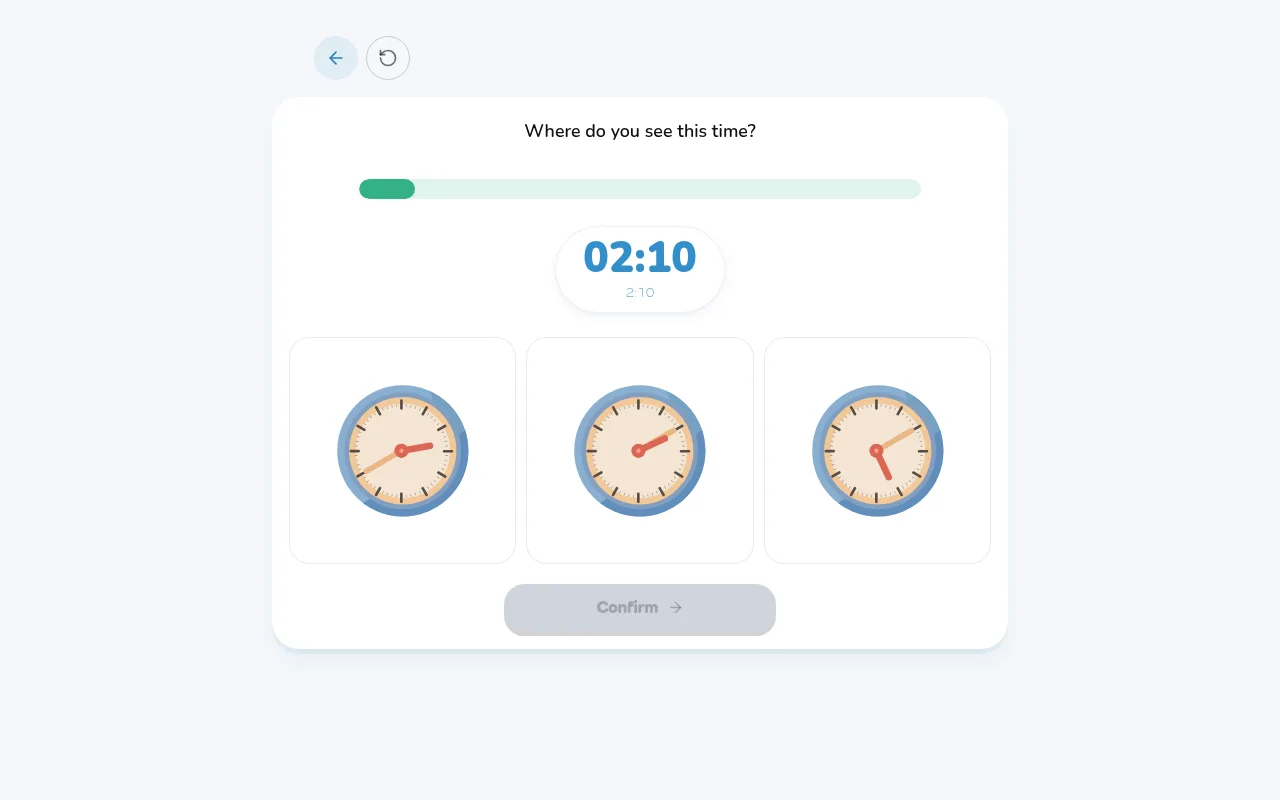
The requested time is shown large as a digital time and in words. Below it wait three clocks, only one matches. The child taps their choice and confirms. Great as an entry point, because recognising is easier than setting the time yourself. On a wrong attempt, a friendly "Take another look!" encourages them.
Game 4: Read the Clock
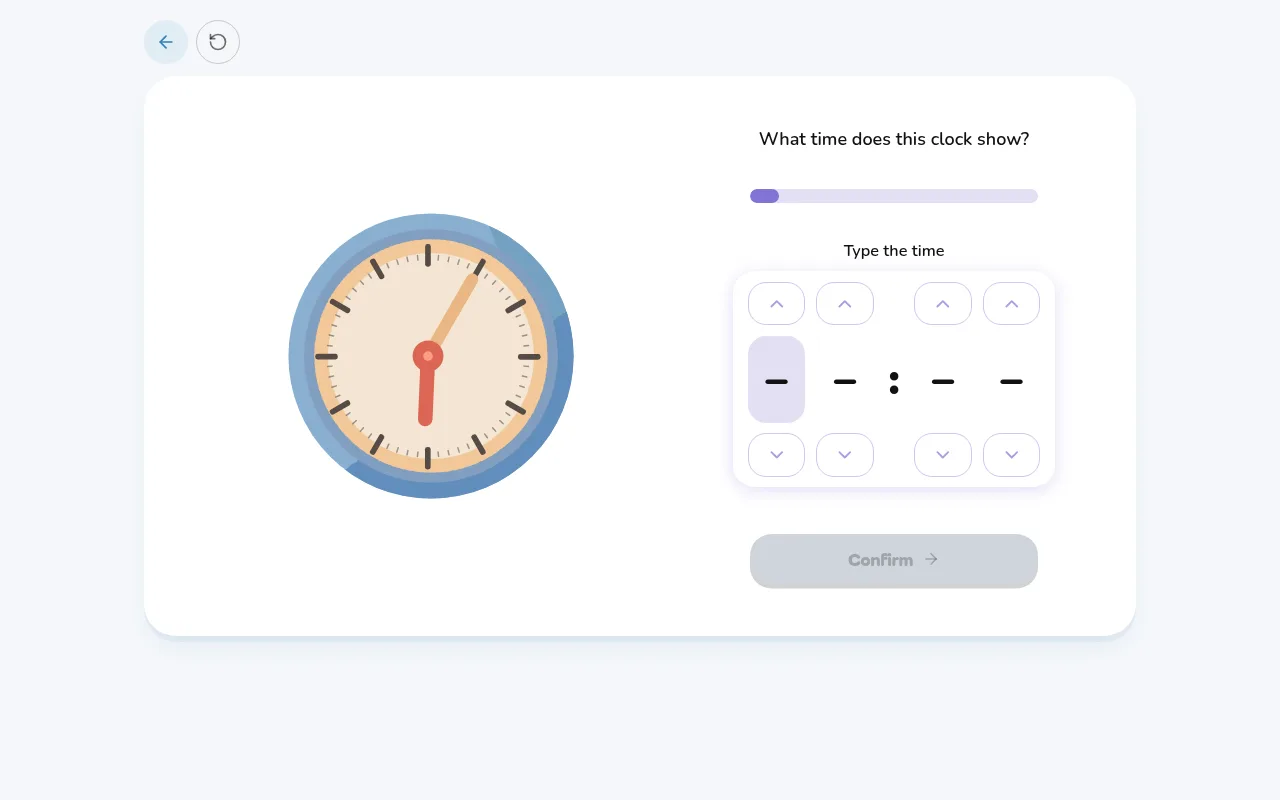
The master discipline: the child sees only the analog clock and types the time in digit by digit. On the "Tricky" level, a "morning" or "afternoon" badge helps distinguish the halves of the day (e.g. 3:00 vs. 15:00). On mistakes the app reveals the correct solution, so every attempt remains a learning step.
Difficulty levels
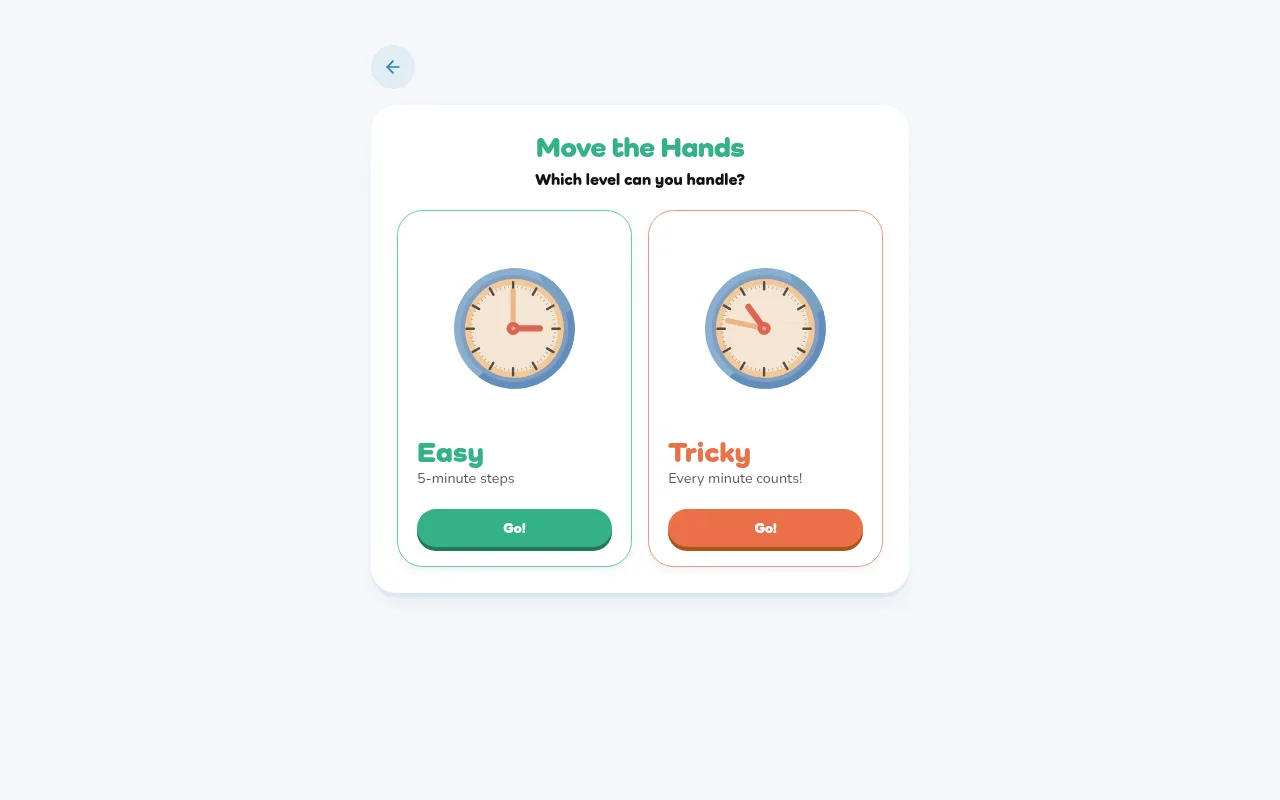
Every game starts with picking a level: "Easy" works in 5-minute steps, the ideal starting level. "Tricky" is precise to the minute (every minute counts!). After a strong round, the "Harder" button in the results suggests moving up, so the challenge grows with the skill.
Tips for getting started
Start with the chapters in "Understanding the clock" and the game "Find the Right Clock" on level "Easy". Practice in short, regular 5- to 10-minute sessions, more sustainable than rare long ones. Praise sticking with it, not speed: once children understand the clock, they have it for life.
Bonus: knowledge cards
On "My Home", little knowledge cards keep popping up: how does an hourglass measure time? Why does a clock go "clockwise"? Where does Big Ben stand? These tiny stories make the world of time tangible and often stay with children longer than mere drill practice.
Contact & support
Didn't find an answer here, something isn't working, or you have a suggestion? Write to us, we read every message.
Send us an email
For questions about your account, about using Zeitlernen with your children, about school use or about data protection, you can reach us at this address:
support@zeitlernen.appFeedback straight from the app
If you are signed in, the feedback form is quicker: you'll find it in the avatar menu under "Feedback", and in the app in the "Parents" area. It automatically tells us which page you were on, which makes a problem easier to reproduce.
How quickly we reply
We're a small team in Switzerland and usually reply within two working days. If you describe what you did and what you expected, you save us a follow-up question.
Provider and legal information
Zeitlernen is a service of blackpine GmbH, Bahnhofstrasse 2, 6210 Sursee, Switzerland. The full details are in the imprint, along with the privacy policy and the terms of service: